
Running pace alerts for iPhone
Choose a target pace and get voice or vibration cues when you run too fast or too slow.
Set a pace and start an outdoor run
- Choose the pace you want to hold, in minutes per kilometre or per mile. Use the pace calculator if you have a goal time.
- Choose voice or vibration guidance and allow the requested location access. Keep Precise Location enabled for recording.
- Start the run. You can lock your screen while Pacemax records in the background. After the run, review your splits and time on target.
 Download on theApp Store
For outdoor running on iPhone. Account and Pacemax Pro required.
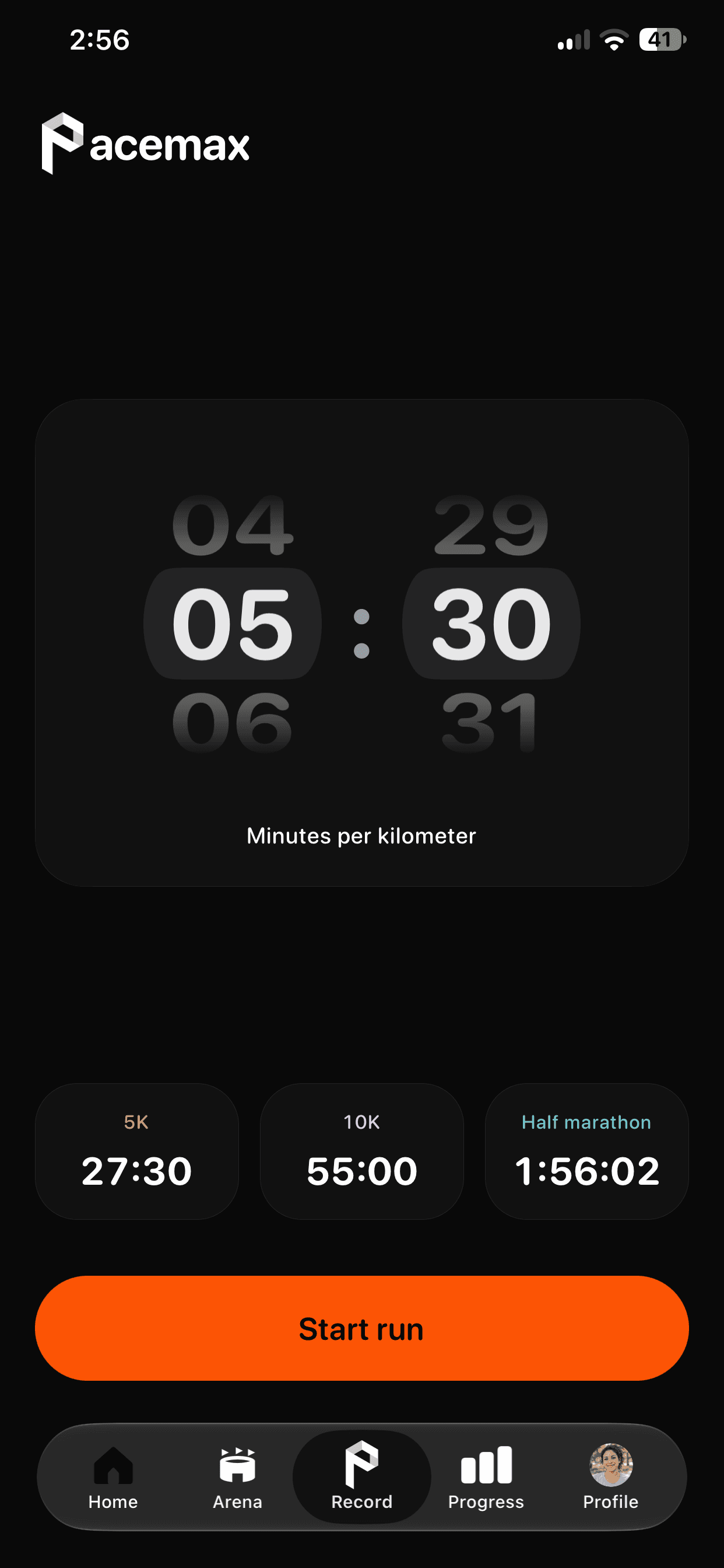
When you’ll get a pace alert
Pacemax compares recent pace measurements with your target. A cue helps you adjust when the app has a reliable reading outside your target range. When you’re on pace, it stays quiet. A brief jump in the pace display may pass without a cue.
For example, if your target is 6:00/km and your pace settles at 5:35/km, you’re running faster than planned. A cue lets you ease off without checking the screen. Give the measurement time to settle after an adjustment.
If you don’t hear or feel a cue
Check your guidance setting, iPhone media volume and audio output. Weak GPS, denied permissions and audio interruptions can affect cues. Silence can mean you’re on target or that the app lacks usable data. Check pace cue troubleshooting if alerts keep dropping out.
Review your run
Use your splits to see how the pace changed over the route. Time on target gives you a different view from average pace. You can finish with an average close to your goal even if you spent parts of the run above and below it.
Plan your next run
- Running pace calculator
Calculate pace, finish time or distance. Get cumulative splits in kilometres or miles.
- How to keep a steady pace while running
Choose a pace, settle into it and review your splits after the run.
- Offline running on iPhone
Record outdoor runs and get pace cues without mobile data after setup with Pacemax Pro.